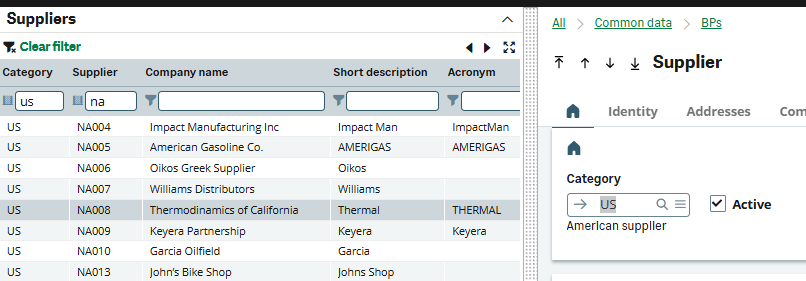

To add fields to a left list in Sage X3, you must modify the Object associated with that specific screen. The fields displayed are controlled by the Selection tab of the Object record.
1. Identify the Object Code
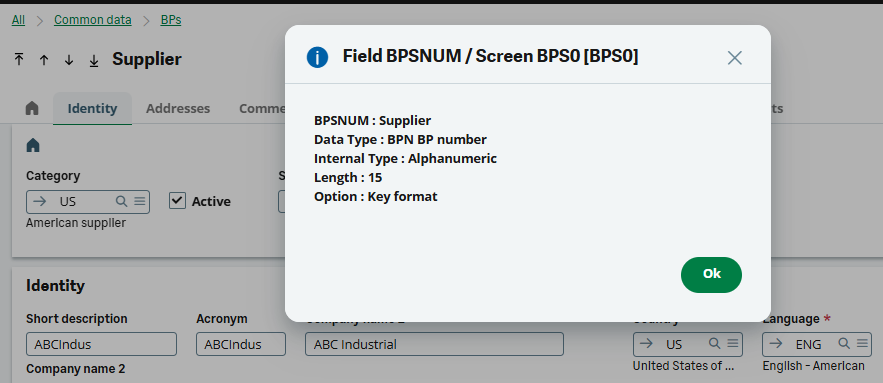
Before making changes, you need to know which Object code the function uses. Open the function you want to modify. Press Esc + F6 on any field to view the screen details, which will display the Object code (e.g., BPS for Suppliers).
Alternatively, go to Development > Script Dictionary > Functions and search for the function code to see its linked Object.
2. Add the Field to the Object
Once you have the code, navigate to the Object management screen. Navigate to: Development > Script Dictionary > Objects and select the Object: Open the record for the code you identified (e.g., BPS).
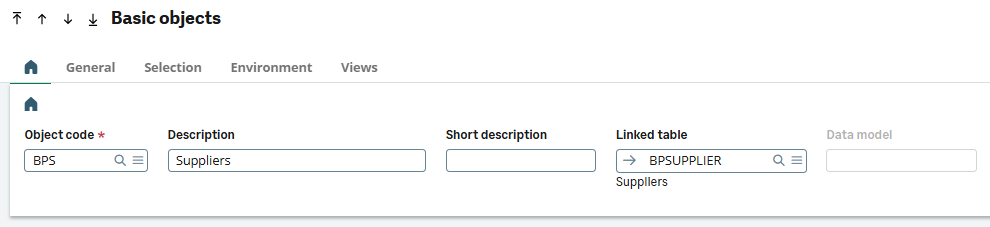
Selection Tab: Click on the Selection tab. This grid contains all fields currently shown in the left list. Insert a New Line by Right-click a row and select Insert line to place the new field in a specific order. Select the Table where the field is located. Select the Field you want to add (e.g., BPRLOG for Acronym).
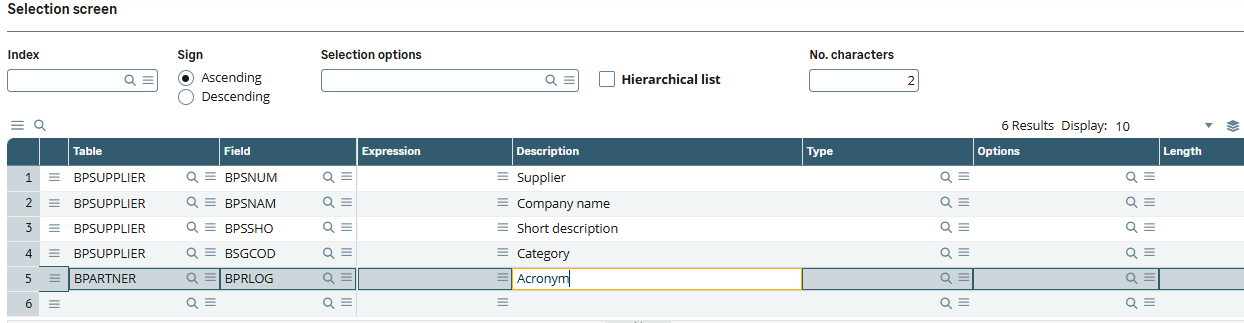
Expressions: You can also add calculated expressions instead of simple table fields (e.g., concatenating two fields).
3. Save and Validate
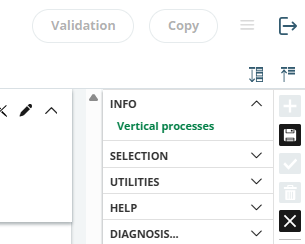
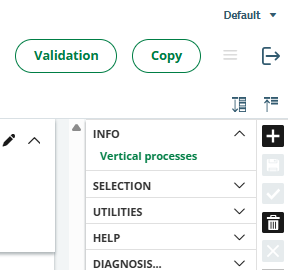
Changes will not appear until the Object and its linked components are recompiled. Click Save on the Object record and Click the Validation button in the right-hand panel. This process regenerates the linked window and browser selection.
Note: If the field is from a table not already linked to the Object, you may first need to add that table in the Environment tab of the Object and define the link.
4. Verify in the Function
Close the function (e.g., Purchase Orders) if it was open. Re-open the function to see the updated columns in the left list.